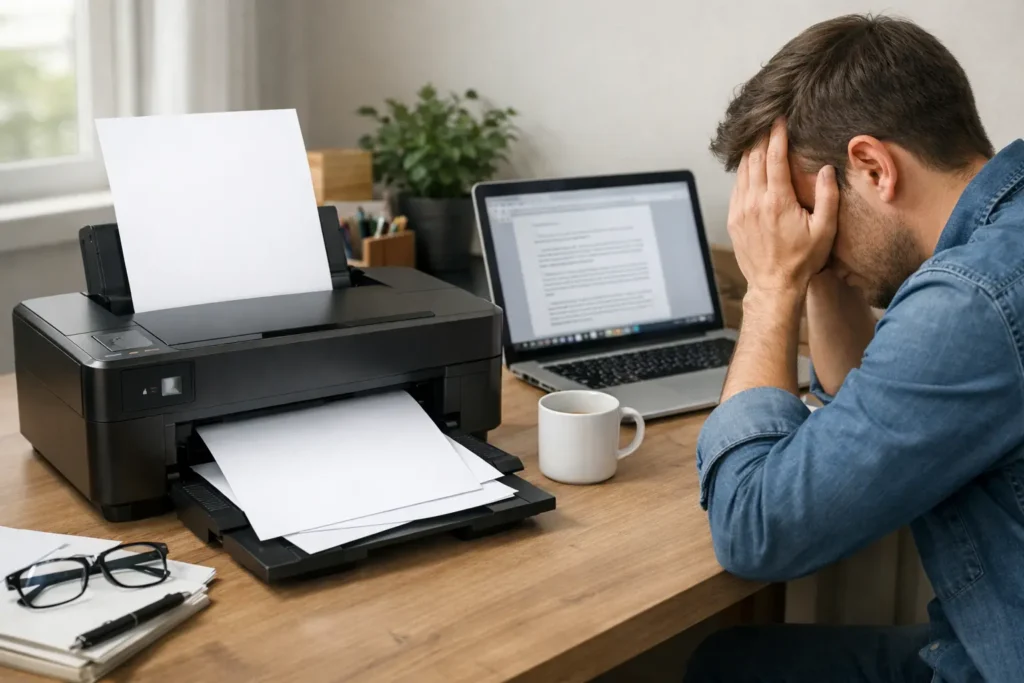

You click “Fix Printer Printing ” and wait. The printer hums, paper slides through, and then — nothing. Just blank pages, over and over again. It is frustrating, especially when you need that document urgently.
You are not alone. This is one of the most common printer problems people face, whether they use HP, Canon, Epson, Brother, or any other brand. The good news is that most of the time, you do not need a technician. You just need the right steps.
In this guide, we will walk you through 10 proven methods to fix a printer printing blank pages. Whether you have an inkjet or laser printer, these solutions work on Windows and Mac computers. Let’s get started.
Why Is My Printer Printing Blank Pages?
Before jumping into the fixes, it helps to understand what causes this problem. A printer can print blank pages for several reasons. Some are simple and take just a few seconds to fix. Others need a little more effort.
Here are the most common causes:
- Empty, dried-out, or clogged ink cartridges
- Incorrect paper settings or the wrong paper loaded in the tray
- Outdated, corrupt, or incompatible printer drivers
- The wrong printer was selected as the default device
- Hardware issues, such as a dirty or blocked print head
- Problems with the document file itself
- A software glitch or a stuck print job in the queue
Now that you know the likely causes, let’s go through each fix step by step. You will know exactly when to fix printer printing issues on your own — and when to call for help.
10 Proven Ways to Fix Printer Printing Blank Pages
Method 1: Check the Ink or Toner Levels
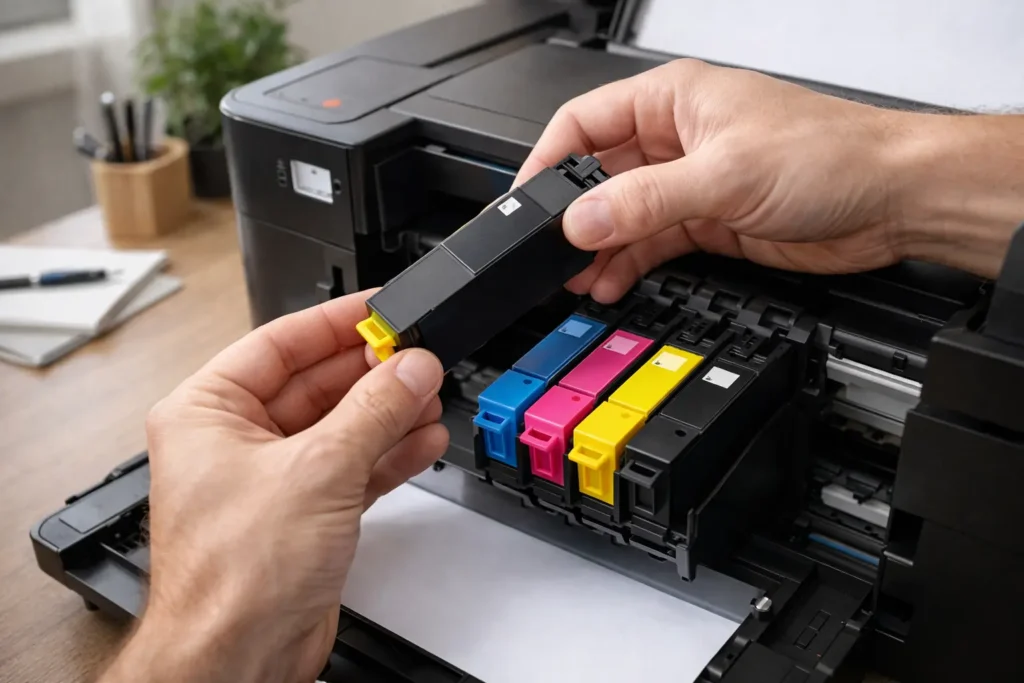
This is the first thing to check. If your printer has low or empty ink cartridges, it will print blank pages without giving much warning.
For inkjet printers: Open your printer software on your computer and look for an “Ink Levels” or “Supplies” section. You can also check from the printer display panel if your model has one.
For laser printers: Look for the toner level indicator. If the toner is low, try gently shaking the cartridge side to side a few times. This can help spread the remaining toner and get a few more pages out of it.
If the ink or toner is empty, replace it. Always use cartridges that are compatible with your printer model. Using the wrong cartridge is a very common reason why people struggle to fix printer printing issues.
💡 Pro Tip: Keep a spare ink cartridge at home so you are never caught off guard during an important print job.
Method 2: Run the Printer’s Built-In Troubleshooter
Both Windows and Mac have built-in tools to detect and fix common printer problems. This is one of the easiest ways to start troubleshooting.
On Windows 10/11:
- Go to Settings > System > Troubleshoot > Other Troubleshooters
- Find “Printer” and click “Run”
- Follow the on-screen instructions
On Mac:
- Go to System Preferences > Printers & Scanners
- Select your printer and click “Open Print Queue”
- Look for any paused or stuck jobs and cancel them
This built-in tool can automatically detect the problem and fix printing issues without you having to do anything manually.
Method 3: Check the Paper Size and Type Settings
Sometimes the printer prints blank pages simply because the paper settings do not match. For example, if your document is set to A4 size but your printer tray has Letter-size paper, the printer may get confused and output a blank sheet.
- Open the document you want to print
- Go to File > Print and check the paper size setting
- Make sure it matches the paper loaded in the printer tray
- Also, check that the paper is correctly aligned in the tray and not jammed
This small step is often overlooked, but it can instantly fix printer printing blank page errors in many cases.
💡 Quick Check: Pull the paper out of the tray and reload it. Sometimes a misaligned stack causes feeding problems that result in blank output.
Method 4: Clean the Print Heads
Over time, inkjet printer heads can get clogged. Dried ink blocks the nozzles and prevents ink from reaching the paper, which results in blank or faded pages.
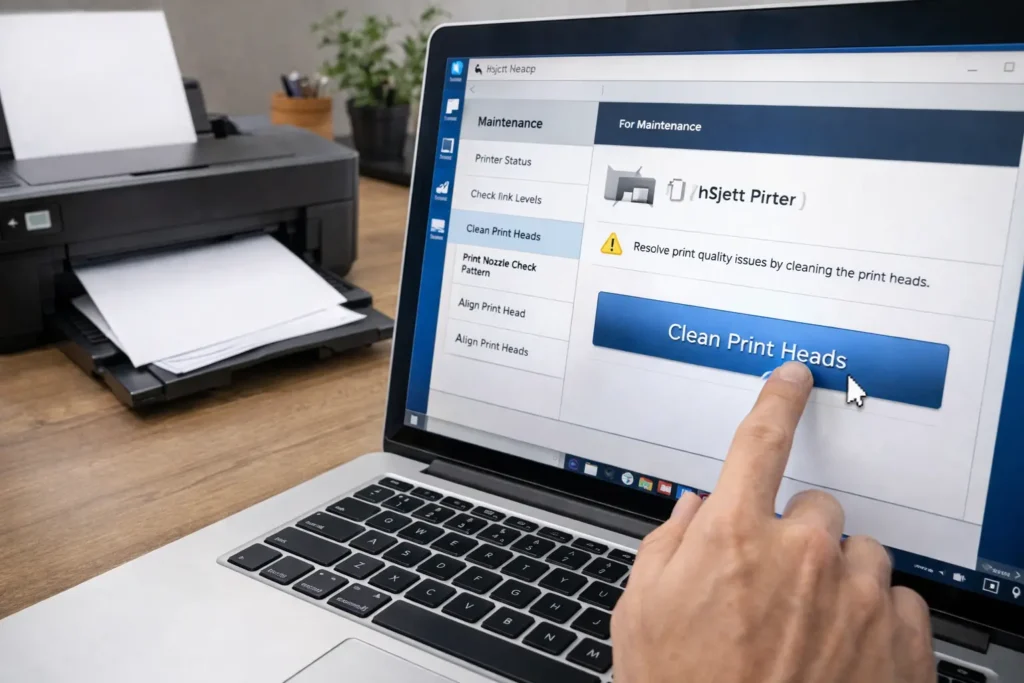
Most printers have a built-in cleaning function you can run from your computer:
- Open the printer software or control panel on your computer
- Look for “Maintenance” or “Tools”
- Select “Clean Print Heads” or “Nozzle Check”
- Run the cleaning cycle and then print a test page
You may need to run the cleaning cycle 2–3 times if the clog is severe. After each cycle, print a test page to see if the output has improved. This is one of the most effective ways to fix printer printing blank page problems on inkjet printers.
💡 Warning: Do not run the cleaning cycle too many times in a row. It uses a lot of ink and can damage the print heads if overused.
Method 5: Update or Reinstall the Printer Driver
A printer driver is the software that helps your computer talk to the printer. If this driver is outdated, missing, or corrupted, it can cause all kinds of problems — including blank pages.
To update the driver on Windows:
- Press Windows + X and select Device Manager
- Expand “Print queues” and right-click your printer
- Select “Update driver” and follow the prompts
To reinstall the driver:
- Go to your printer brand’s official website (e.g., HP, Canon, Epson)
- Search for your printer model and download the latest driver
- Uninstall the old driver first, then install the new one
- Restart your computer and try printing again
Keeping your printer driver up to date is a simple habit that prevents many printing problems, including the need to fix printer printing blank page errors caused by software bugs.
Method 6: Set the Correct Printer as Default
If you have more than one printer connected (or previously connected) to your computer, Windows or Mac might be sending the print job to the wrong device. This is a surprisingly common cause of blank output.
On Windows:
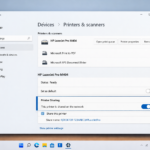
- Go to Settings > Bluetooth & Devices > Printers & Scanners
- Click on your printer and select “Set as Default”
On Mac:
- Go to System Preferences > Printers & Scanners
- At the bottom, use the “Default printer” dropdown to select your printer
Once the correct printer is set as the default, try printing again. You should no longer see blank pages.
Method 7: Clear the Print Queue
A stuck or corrupted print job in the print queue can interfere with new print jobs and cause blank pages to come out. Clearing the queue gives the printer a fresh start.
On Windows:
- Open Settings > Printers & Scanners > Select your printer > Open print queue
- Cancel all pending jobs by right-clicking each one and selecting “Cancel”
- Restart the Print Spooler service: Press Windows + R, type services.msc, find “Print Spooler,” right-click and choose Restart
On Mac:
- Open System Preferences > Printers & Scanners > Open Print Queue
- Delete all pending jobs
After clearing the queue, try printing a simple test document to see if the printing issue is resolved.
Method 8: Check the Document Itself
Sometimes the problem is not the printer at all — it is the file you are trying to print. A corrupted document, a document with white text on a white background, or a file with invisible content can all result in blank pages.
- Try printing a different document, such as a simple text file or a test page
- Open the original file in a different program and try printing from there
- If using a PDF, try printing it with a different PDF reader
- Copy the text from the original document into a new file and print that instead
If the test page prints correctly but your original document still comes out blank, the issue is definitely with the file. This step helps you quickly identify whether you need to fix the printer printing hardware or just fix the document.
Method 9: Perform a Printer Reset
If none of the above methods has worked, a printer reset can clear internal errors and restore default settings. This is like a fresh start for your printer.
Basic reset:
- Turn off the printer
- Unplug the power cable from the back of the printer (not just from the wall)
- Wait for 60 seconds
- Plug it back in and turn it on
Factory reset (varies by brand):
- HP: Hold the Cancel and Resume buttons together for 3 seconds
- Canon: Use the printer’s settings menu and navigate to Device Settings > Reset
- Epson: Hold the Home button and navigate to the Reset menu
Check your printer’s manual or the manufacturer’s website for the exact reset steps for your model. This can be a powerful way to fix printing issues that are caused by internal software glitches.
Read More Article
How to Set Up a New Printer for the First Time
How to Get Google AdSense Approval Fast
10 Best Free Software for Windows Every PC Should Have
Method 10: Check for Hardware Damage or a Faulty Cartridge
If you have tried everything and the printer is still printing blank pages, there may be a hardware problem. This could include:
- A damaged or defective ink cartridge (even a brand new one can sometimes be faulty)
- A worn-out print head that needs replacement
- A hardware malfunction inside the printer itself
Try using a different cartridge to see if that solves the problem. If you recently installed a third-party or refilled cartridge, try replacing it with an original manufacturer cartridge.
If the printer is still under warranty, contact the manufacturer for a replacement or repair. If it is older, it may be more cost-effective to upgrade to a new printer.
Extra Troubleshooting Tips to Fix Printer Printing Issues
- Always print a test page after each step to see if the problem is resolved
- Use genuine ink cartridges whenever possible. Third-party cartridges are cheaper but can cause more problems
- Keep your printer in a cool, dry place. Extreme heat or humidity can dry out ink faster
- If your printer has been sitting unused for weeks, print a test page to unclog the nozzles before important jobs
- Make sure your printer firmware is up to date. You can usually find firmware updates on the manufacturer’s website
- Restart your computer and printer before trying any fixes — sometimes a simple reboot solves everything
Frequently Asked Questions (FAQs)
Q1. Why does my printer print blank pages even though it has ink?
Even with ink in the cartridge, the print heads can be clogged with dried ink. This stops the ink from reaching the paper. Run the print head cleaning cycle from your printer software to fix this. Also, make sure you remove the protective tape from the cartridge when you install it — many people forget this step!
Q2. How do I fix the printer printing blank pages on Windows 11?
Start by running the Windows printer troubleshooter (Settings > System > Troubleshoot > Printers). Then check ink levels, update the driver, and clear the print queue. If the problem continues, uninstall and reinstall the printer driver using the latest version from the manufacturer’s website.
Q3. Can a virus cause a printer to print blank pages?
It is rare, but malware can interfere with printer drivers and software, causing unusual behaviour. If you suspect a virus, run a full scan with your antivirus software. After removing any threats, reinstall the printer driver to restore normal printing.
Q4. Why is my laser printer printing blank pages?
For laser printers, the most common cause is low or empty toner. Try gently shaking the toner cartridge to redistribute the remaining toner. Also, check that the protective seal was removed from the cartridge during installation. If the toner is fine, the drum unit may need cleaning or replacement.
Q5. How do I fix the printer printing blank pages on a Mac?
On a Mac, go to System Preferences > Printers & Scanners and remove the printer from the list. Then add it back again. This refreshes the printer connection. Also, check for macOS updates, as outdated system software can cause driver conflicts that lead to blank page printing.
Conclusion
A printer that keeps spitting out blank pages can feel like a nightmare, especially when you are in a hurry. But as you have seen, most of the causes are easy to fix at home with just a few minutes of troubleshooting.
Start with the simple checks first: ink levels, paper settings, and the print queue. Proceed to clean the print heads, update drivers, and reset the printer as needed. In most cases, one of these steps will resolve printer blank-page printing issues permanently.
If you have tried all 10 methods and the printer is still not working correctly, it may be time to visit a local repair shop or consider replacing the printer. Modern printers are more affordable than ever, and a new one might save you a lot of frustration in the long run.
💡 Did this guide help you? Share it with a friend who is struggling with the same problem! And if you are looking for a new printer or the best ink cartridges, check out our Fashion guide for top-rated picks.