
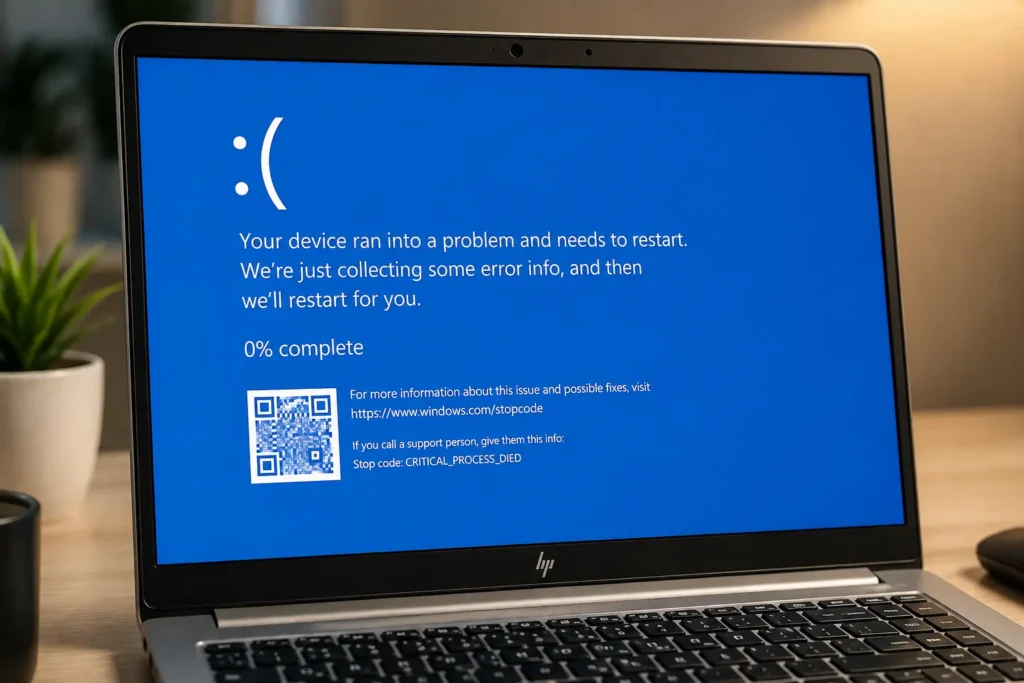

You’re in the middle of something important. Maybe you’re finishing a report, chatting with a client, or just scrolling through your favourite website. Then, out of nowhere, your screen turns blue, a sad face stares back at you, and your computer restarts on its own. If this has happened to you, you already know how frustrating it feels.
This is called the Blue Screen of Death, or BSOD for short. And if you’re reading this, you’re probably here because you want to know how to fix a Windows 11 Blue Screen Error without paying a technician or losing your important files.
The good news? Most blue screen errors in Windows 11 can be fixed at home, using simple steps that don’t need any advanced computer knowledge. In this guide, we’ll walk you through everything, from understanding why this error happens to trying ten proven fixes that actually work. By the end, you’ll know exactly what to do the next time that dreaded blue screen shows up.
What Is the Windows 11 Blue Screen Error?
The Blue Screen of Death is a system error screen that appears when Windows 11 runs into a problem it cannot recover from safely. Instead of continuing to run and risking more damage, your computer stops everything and restarts to protect your data and hardware.
You’ll usually see a message like “Your device ran into a problem and needs to restart”, along with a stop code such as CRITICAL_PROCESS_DIED, IRQL_NOT_LESS_OR_EQUAL, or MEMORY_MANAGEMENT. These codes might look scary, but they are actually clues that help you figure out what caused the crash.
Understanding how to fix Windows 11 Blue Screen Error starts with knowing that this isn’t just one problem. It’s a symptom that can come from many different causes, which is why we need to check several possible fixes rather than just one.
For most home users and small business owners, a blue screen error is more than just an inconvenience. It can interrupt work, cause you to lose unsaved documents, and create real anxiety about whether something is seriously wrong with your computer. The truth is, in the vast majority of cases, the fix is simpler than it looks, and you rarely need to replace any hardware.
Common Causes of the Blue Screen Error in Windows 11
Before jumping into solutions, it helps to understand what usually triggers this error. Here are the most common reasons:
- Outdated or corrupted device drivers, especially graphics and network drivers
- A recent Windows update that didn’t install correctly
- Faulty or failing hardware, such as RAM or a hard drive
- Overheating due to dust build-up or poor ventilation
- Corrupted system files
- Incompatible or poorly written third-party software
- Overclocking your CPU or GPU beyond safe limits
- Malware or virus infections
Once you know the possible causes, it becomes much easier to work through the fixes in order and find the one that solves your specific problem. In many cases, more than one factor is at play, which is why it’s worth going through the methods below in sequence rather than stopping after just one attempt.
Understanding Common Stop Codes
Every blue screen error comes with a stop code, and reading it can save you a lot of guesswork. Here are a few you’ll see often, along with what they usually point to:
- CRITICAL_PROCESS_DIED — A key system process closed unexpectedly, often linked to corrupted system files or a bad update.
- IRQL_NOT_LESS_OR_EQUAL — Usually caused by a faulty or outdated driver, especially network or graphics drivers.
- MEMORY_MANAGEMENT — Points to a problem with your RAM or how Windows is handling memory.
- DPC_WATCHDOG_VIOLATION — Often related to storage drivers or an outdated SSD firmware.
- PAGE_FAULT_IN_NONPAGED_AREA — Can be caused by faulty RAM, a failing hard drive, or corrupted drivers.
You don’t need to memorise these codes. Just jot down whatever appears on your screen, since it will help you (or a technician) skip straight to the most likely fix instead of testing everything from scratch.
Before You Begin: Quick Safety Checks
A few quick checks can save you a lot of time later, and they take less than five minutes to complete:
- Note down the stop code shown on the blue screen, if you can see it. This helps narrow down the cause.
- Back up important files if your computer is still accessible, using an external drive or cloud storage.
- Make sure your laptop or desktop is plugged into power before starting any fix, so it doesn’t shut down midway.
- Close any unnecessary background apps to free up resources before running scans or diagnostics.
With that out of the way, let’s look at ten methods for how to fix Windows 11 Blue Screen Error, starting with the simplest ones first and working toward more advanced options if the earlier steps don’t resolve the issue.
10 Proven Ways to Fix Windows 11 Blue Screen Error
Method 1: Restart Your Computer and Check for Windows Updates
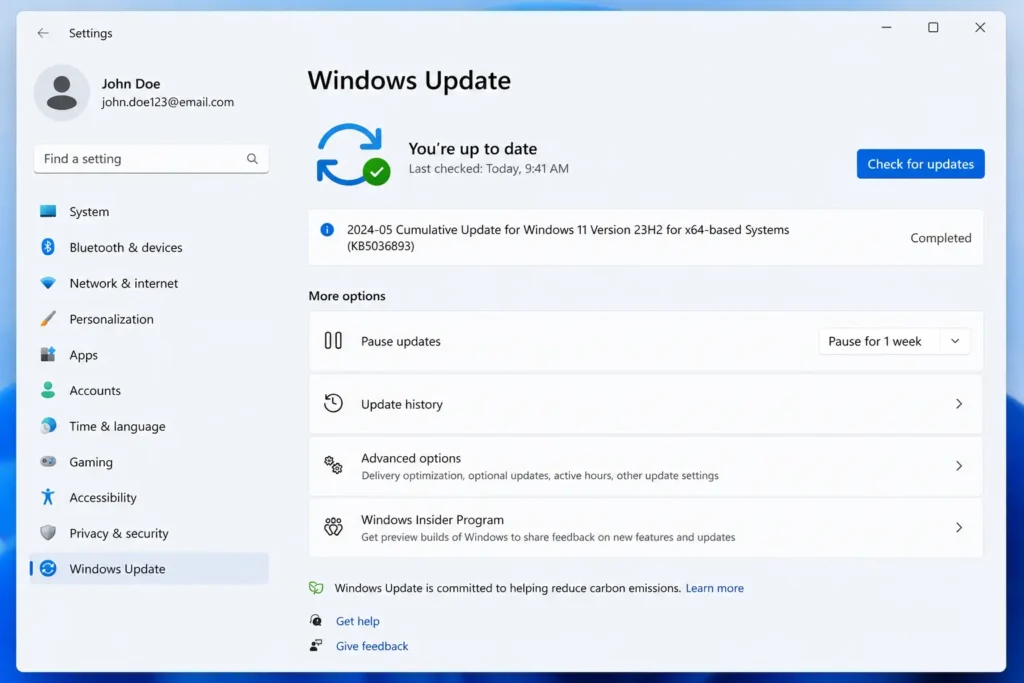
It sounds too simple, but it works more often than you’d think. Sometimes a blue screen is a one-time glitch, and a simple restart clears it out. After restarting, check if Windows has any pending updates, since Microsoft regularly releases fixes for known bugs that cause crashes.
Steps to follow:
- Click the Start button and open Settings.
- Go to Windows Update from the left menu.
- Click Check for Updates.
- Install any updates available, then restart your PC.
This is often the fastest way to fix a Windows 11 Blue Screen Error caused by known software bugs that Microsoft has already patched.
Method 2: Run the Built-In Windows Update Troubleshooter
Windows 11 has a built-in tool that scans for update-related problems and fixes them automatically. This is especially useful if a failed update is behind your blue screen crashes.
Steps to follow:
- Open Settings and go to System.
- Select Troubleshoot, then Other Troubleshooters.
- Find Windows Update and click Run.
- Follow the on-screen instructions and restart when prompted.
Method 3: Uninstall the Most Recent Windows Update
If your BSOD errors started right after a Windows update, that update is likely the culprit. Rolling it back can immediately solve the problem while you wait for a fixed version.
Steps to follow:
- Go to Settings, then Windows Update.
- Click Update History.
- Select Uninstall Updates.
- Choose the most recent update and click Uninstall.
This method is a reliable answer to how to fix Windows 11 Blue Screen Error when the timing lines up with a recent update.
Method 4: Update or Roll Back Device Drivers
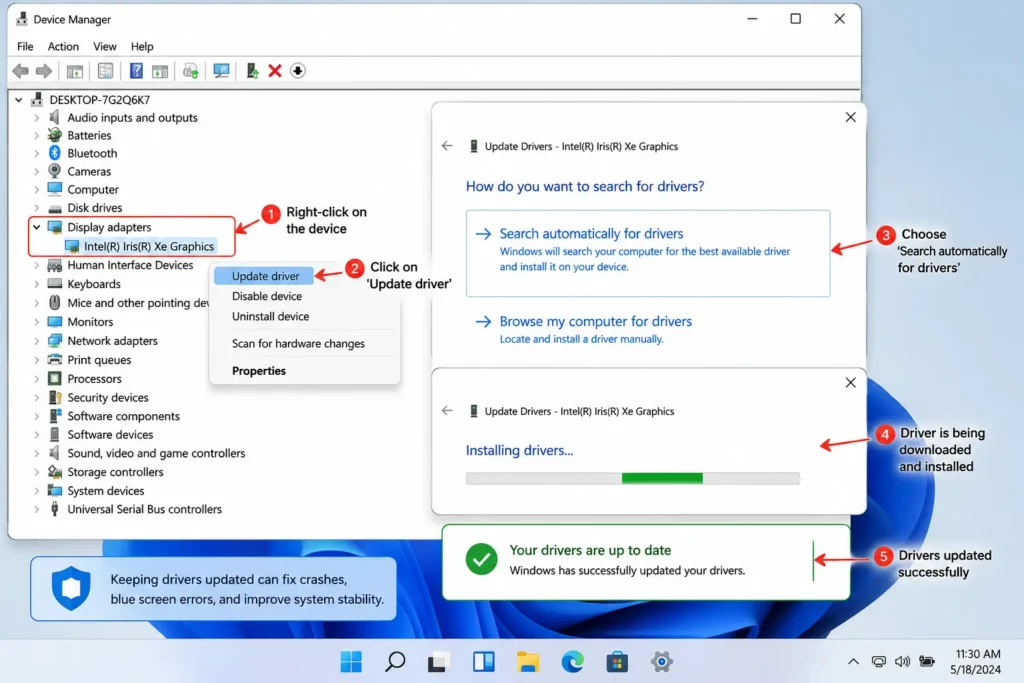
Outdated or corrupted drivers, especially for your graphics card, are one of the biggest causes of blue screen crashes. Updating them, or rolling back a recently updated driver, often solves the issue.
Steps to follow:
- Right-click the Start button and select Device Manager.
- Expand Display Adapters and other categories showing a warning icon.
- Right-click the device and choose Update Driver.
- Select Search Automatically for Drivers.
- If a driver was recently updated and problems began after that, right-click it, choose Properties, go to the Driver tab, and click Roll Back Driver.
Method 5: Run SFC and DISM Scans to Repair System Files
Windows 11 has built-in tools that can find and repair corrupted system files, which are a common hidden cause of blue screen errors.
Steps to follow:
- Type cmd in the search bar, right-click Command Prompt, and select Run as Administrator.
- Type sfc /scannow and press Enter. Wait for the scan to finish.
- Next, type DISM /Online /Cleanup-Image /RestoreHealth and press Enter.
- Restart your computer once both scans are complete.
| Pro Tip • Run these two scans together, not just one. SFC checks Windows system files, while DISM repairs the underlying Windows image, so using both gives you a more complete fix. |
Method 6: Check Your Hardware for Faults
If software fixes don’t work, your hardware might be the problem, especially your RAM or hard drive. Windows 11 includes free tools to test both.
Testing your RAM:
- Search for Windows Memory Diagnostic in the Start menu and open it.
- Choose Restart Now and Check for Problems.
- Your PC will restart and run the test automatically, showing results after rebooting.
Checking your hard drive:
- Open Command Prompt as Administrator.
- Type chkdsk C: /f /r and press Enter.
- Confirm the scan on the next restart if prompted, then restart your PC.
Method 7: Uninstall Recently Installed Software
Sometimes a new program, especially antivirus tools, VPNs, or system utilities, can conflict with Windows 11 and trigger a blue screen. If your crashes started after installing something new, removing it can help.
Steps to follow:
- Go to Settings, then Apps, then Installed Apps.
- Look for anything installed around the time your problems began.
- Click the three dots next to the app and select Uninstall.
- Restart your computer and check if the crashes stop.
Method 8: Disable Fast Startup and Check for Overclocking
Fast Startup is meant to speed up boot times, but it can sometimes cause conflicts that lead to blue screen errors. Similarly, if you or someone else has overclocked your CPU or GPU, that extra performance push can make your system unstable.
To disable Fast Startup:
- Open Control Panel and go to Power Options.
- Click Choose What the Power Buttons Do.
- Select Change Settings That Are Currently Unavailable.
- Uncheck Turn On Fast Startup, then click Save Changes.
If you use software to overclock your CPU or GPU, consider resetting it to default settings to see if that resolves the crashes.
Method 9: Use System Restore to Go Back to a Stable Point
System Restore lets you roll your computer back to a previous point in time when it was working fine, without affecting your personal files.
Steps to follow:
- Search for Create a Restore Point in the Start menu and open it.
- Click System Restore.
- Choose a restore point from before the blue screen errors started.
- Follow the prompts to complete the restore, then restart your PC.
This is one of the most effective ways to fix a Windows 11 Blue Screen Error when you can’t pinpoint the exact cause, since it undoes recent changes all at once.
Method 10: Reset Windows 11 as a Last Resort
If none of the above methods works, resetting Windows 11 can wipe out deep software issues while giving you the option to keep your personal files.
Steps to follow:
- Go to Settings, then System, then Recovery.
- Click Reset PC.
- Choose Keep My Files to preserve your documents and photos.
- Follow the on-screen steps and wait for the process to finish.
| Pro Tip • Always back up important files before resetting your PC, even when choosing the Keep My Files option, just to be safe. |
When Should You Contact a Professional?
If you’ve tried all the steps above and your Windows 11 computer still crashes with a blue screen, it might be time to bring in expert help. This is especially true if:
- The crashes happen even in Safe Mode
- Hardware diagnostic tests show clear errors
- You’re not comfortable opening Command Prompt or Device Manager
- The problem keeps returning after every fix
A trusted remote IT support service can access your computer safely, diagnose the exact cause, and fix it without you needing to leave your home. This is often faster and cheaper than carrying your PC to a repair shop, and it means you don’t have to be without your computer for days at a time.
Professional technicians also have access to deeper diagnostic tools that can spot failing hardware before it causes permanent data loss, which is something the built-in Windows tools can sometimes miss.
Extra Troubleshooting Tips
| Quick Troubleshooting Checklist • Always note the stop code before restarting; it points to the exact cause. • Boot into Safe Mode if your PC won’t start normally, then try the fixes above. • Keep your drivers and Windows updated regularly to avoid future crashes. • Clean out dust from your laptop or desktop vents to prevent overheating. • Run a full antivirus scan if you suspect malware is involved. |
Read More Articles MacBook 2026 Full Review: Performance, Battery Life & Real Use Test Read More Articles
New MacBook 2026 Launched: Features, Price, Release Date & Full Specs
Frequently Asked Questions
1. What does BSOD mean in Windows 11?
BSOD stands for Blue Screen of Death. It’s the blue error screen Windows 11 shows when it hits a critical problem it cannot recover from safely, forcing a restart.
2. Can a blue screen error damage my computer?
A single blue screen error usually doesn’t cause permanent damage. However, frequent crashes can lead to file corruption or hardware wear over time, so it’s important to fix the root cause quickly.
3. Why does my Windows 11 PC keep getting blue screen errors?
Repeated blue screens are usually a sign of outdated drivers, corrupted system files, faulty hardware, or a recent software conflict. Working through the methods in this guide, one at a time, will help you find the exact cause.
4. Will I lose my files if I fix a blue screen error?
Most fixes, including driver updates, SFC scans, and System Restore, do not affect your personal files. Only a full reset without the Keep My Files option would remove data, so always choose that option or back up first.
5. How do I find the stop code on a blue screen error?
The stop code usually appears in small text on the blue screen itself, often as a phrase like MEMORY_MANAGEMENT or CRITICAL_PROCESS_DIED. You can also find recent crash details in the Event Viewer under Windows Logs.
6. Is it safe to fix a Windows 11 Blue Screen Error myself?
Yes, most of the methods in this guide are safe for regular users, since they use built-in Windows tools. Just make sure to back up important files before trying hardware tests or a system reset.
7. How long does it take to fix a blue screen error?
Simple fixes like restarting or updating drivers can take just a few minutes. Deeper fixes, such as running SFC and DISM scans or performing a full reset, may take thirty minutes to a few hours depending on your computer’s speed and how much data it needs to check.
8. Can overheating really cause a blue screen error?
Yes. When your CPU or GPU gets too hot, Windows may shut down processes suddenly to protect the hardware, which can trigger a blue screen. Cleaning out dust, improving airflow, and avoiding blocked vents can help prevent this.
Conclusion: Get Back to a Stable, Crash-Free PC
Dealing with a blue screen error can feel stressful, especially when you’re not sure what caused it. But as you’ve seen, learning how to fix a Windows 11 Blue Screen Error doesn’t have to be complicated. From simple restarts and driver updates to deeper fixes like System Restore or a full reset, there’s a solution here for almost every situation.
Start with the easier methods first, work your way down the list, and pay attention to when the crashes started, since that timing often points straight to the cause. With a bit of patience, most users can solve this problem without ever needing to visit a repair shop.
It also helps to build a few small habits going forward. Keep Windows and your drivers updated, avoid installing software from unknown sources, and give your computer a light dust-off every few months so it doesn’t overheat. These small steps go a long way toward keeping the blue screen away for good.
Still seeing that blue screen after trying everything? Don’t stress about it. Reach out to a trusted IT support team who can diagnose and fix the issue remotely, so you can get back to a smooth, stable Windows 11 experience today.



Pingback: PC Repair Guide: Common Problems and Fixes