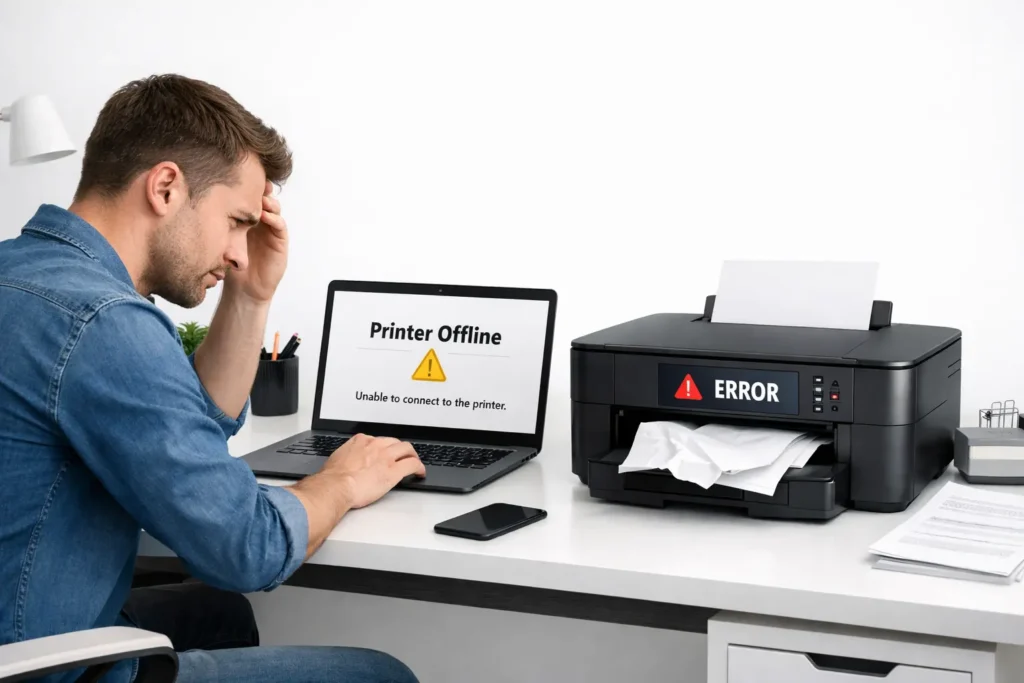

You hit print. You hear the printer hum. And then… nothing. Or worse — it spits out a blank page. If your printer’s not printing problem has you pulling your hair out, you are definitely not alone. This is one of the most common tech frustrations people deal with at home and at work.
The good news? Most of the time, a printer that isn’t working isn’t a sign you need a new one. Nine times out of ten, the fix is simple — and you can do it yourself in just a few minutes, no tech skills required.
In this guide, we will walk you through 7 tried-and-tested fixes that have helped thousands of people get their printers back on track. We will cover everything from basic checks to driver updates, so stick with us — your printer will be printing again before you know it.
Why Is My Printer Not Printing? (Common Causes)
Before jumping into the fixes, it helps to understand why printers stop printing in the first place. There is usually a pretty logical reason behind it. Here are the most common culprits:
- The printer is offline or disconnected from your computer
- The print queue is jammed with stuck or failed jobs
- Printer drivers are outdated, corrupted, or missing
- Low ink or empty toner cartridges
- A paper jam that is not fully cleared
- Wi-Fi connectivity issues for wireless printers
- The wrong printer is set as the default on your computer
- The Print Spooler service on Windows has crashed
Now that we know what we are dealing with, let us get into the fixes.
Fix 1: Check the Basics First (Yes, Really)
When your printer is not printing, the very first thing to do is check the obvious stuff. You would be surprised how often the fix is something super simple. Tech support professionals call this “going back to basics” — and it works more often than you think.
Quick Checklist:
- Is the printer powered on? Check that the power light is on.
- Is the USB cable or network cable plugged in properly?
- Is there paper in the paper tray?
- Is the paper loaded correctly and not jammed?
- Are the ink or toner cartridges properly seated?
- Is the printer showing any error lights or warning messages?
Pro Tip: Try turning the printer off, waiting 30 seconds, and turning it back on. This simple restart clears many temporary glitches that cause a printer to stop printing unexpectedly.
Also, try restarting your computer. Sometimes the issue is on the computer side, not the printer. After a reboot, send a test print and see if things have improved.
Fix 2: Set Your Printer as the Default Printer
Here is something most people do not think about: your computer might be trying to print to a different printer. If you have ever connected another printer (even temporarily), your PC might be sending the job to that one instead.
How to Set a Default Printer on Windows:
- Click the Start Menu and go to Settings.
- Select Bluetooth & devices (Windows 11) or Devices (Windows 10).
- Click on Printers & scanners.
- Find your printer in the list and click on it.
- Click Set as default.
How to Set a Default Printer on Mac:
- Open System Settings (or System Preferences on older Macs).
- Go to Printers & Scanners.
- Select your printer from the list on the left.
- Click on the Default printer dropdown and select your printer.
Once the correct printer is set as the default, try printing again. This alone resolves the printer not printing issue for a lot of people.
Fix 3: Clear the Print Queue
A stuck print job is one of the most frustrating reasons for a printer not printing. When the print queue gets clogged — usually from a failed or paused print job — your printer simply refuses to move forward until it is cleared.
How to Clear the Print Queue on Windows:
- Press Windows + R to open the Run dialog.
- Type control printers and press Enter.
- Right-click on your printer and select See what’s printing.
- Click Document in the top menu, then Cancel All Documents.
- Wait a moment and check if the queue is now empty.
If the jobs will not delete, you may need to stop and restart the Print Spooler service. Here is how:
- Press Windows + R, type services.msc, and press Enter.
- Scroll down and find Print Spooler in the list.
- Right-click on it and select Stop.
- Open File Explorer and navigate to C:\Windows\System32\spool\PRINTERS.
- Delete all files inside that folder (do NOT delete the folder itself).
- Go back to Services, right-click Print Spooler, and select Start.
- Try printing again.
Pro Tip: After clearing the queue, always restart the printer before sending a new print job. This gives the printer a clean slate.
Fix 4: Update or Reinstall Your Printer Drivers
Outdated or corrupted printer drivers are one of the most sneaky reasons behind a printer not working. Drivers are the software that lets your computer “talk” to the printer. When they break down or fall behind, communication breaks down too.
How to Update Printer Drivers on Windows:
- Press Windows + X and select Device Manager.
- Expand the Print queues section.
- Right-click your printer and select Update driver.
- Choose Search automatically for drivers.
- Windows will find and install the latest driver if available.
If the above does not work, try uninstalling the printer driver completely and reinstalling it from scratch. Here is how to do that:
- Go to Settings > Bluetooth & devices > Printers & scanners.
- Click on your printer and select Remove device.
- Visit your printer manufacturer’s website (HP, Canon, Epson, Brother, etc.).
- Download the latest driver for your exact printer model.
- Install the driver and follow the on-screen steps.
- Restart your computer and test print.
Troubleshooting Tip: If you are unsure which driver to download, most manufacturer websites have a tool that automatically detects your printer model. Just visit the support page and follow the prompts.
Fix 5: Fix the Printer Offline Problem
If your printer is showing as “offline” on your computer, that is a clear sign your PC cannot communicate with it. This is a very common reason for a printer not printing — especially with wireless printers.
Steps to Bring a Printer Back Online:
- Go to Settings > Printers & scanners.
- Click on your printer.
- Select Open print queue.
- In the print queue window, click Printer in the top menu.
- Make sure Use Printer Offline is NOT checked. If it is checked, click it to uncheck it.
- Close the window and try printing again.
For Wireless Printers:
- Make sure both your printer and computer are connected to the same Wi-Fi network.
- Move the printer closer to the router if the signal is weak.
- Restart both the router and the printer.
- Check if the printer’s IP address has changed (you can find this on the printer’s display screen or by printing a configuration page).
Pro Tip: Assign a static IP address to your printer in your router settings. This prevents the IP from changing every time your printer reconnects to the network, which is a very common cause of wireless printer issues.
Fix 6: Check Ink Levels and Cartridges
This one sounds obvious, but many people overlook it. If your printer is not printing, low or empty ink cartridges might be the reason. Some printers will flat out refuse to print — even in black and white — if any single colour cartridge is empty.
How to Check Ink Levels:
- On Windows: Open the printer software from your taskbar or Start menu. Look for an option called Ink Levels, Supplies, or Estimated Ink Levels.
- On Mac: Go to System Settings > Printers & Scanners > Open Print Queue > Supply Levels.
- On the Printer itself: Many modern printers have a display screen that shows ink levels directly.
Cartridge Issues to Watch For:
- Cartridge not recognised: Remove and reinsert the cartridge firmly. If that does not work, clean the cartridge contacts with a dry cloth.
- New cartridge not working: Make sure you removed the protective tape or seal from the cartridge before installing.
- Ink dried up: If you have not printed in a long time, ink inside the nozzles may have dried. Run the printer’s built-in head cleaning utility (usually found in printer settings or software).
Troubleshooting Tip: If your printer is printing blank pages, it is almost always an ink or cartridge issue. Run a nozzle check first — most printers have this option under Maintenance or Tools in the printer settings.
Fix 7: Run the Built-In Printer Troubleshooter
Windows comes with a built-in printer troubleshooter that can automatically detect and fix many common problems. It is one of the easiest tools to use and often solves printer not printing issues without any manual steps.
How to Run the Printer Troubleshooter on Windows 11/10:
- Open Settings (press Windows + I).
- Go to System > Troubleshoot.
- Click on Other troubleshooters.
- Find Printer in the list and click Run.
- Follow the on-screen instructions.
- Restart the computer when finished.
The troubleshooter will check things like driver status, print spooler service, default printer settings, and connectivity. It can fix many issues automatically and will tell you what it found — even if it cannot fix something, the information is useful.
Bonus Fixes: More Ways to Solve Printer Not Printing
Still stuck? Here are a few more fixes that can help when the usual solutions do not work.
Fix 8: Restart the Print Spooler Service Manually
The Print Spooler is a Windows service that manages all print jobs sent to your printer. If it crashes or gets stuck, your printer will not print even if everything else looks fine.
- Press Windows + R, type services.msc, and hit Enter.
- Find Print Spooler in the list.
- Right-click it and select Restart.
- If Restart is greyed out, click Stop first, then Start.
- Try printing again.
Fix 9: Check for Paper Jams (Even Hidden Ones)
Sometimes a small piece of torn paper gets stuck inside the printer and you cannot even see it. This hidden jam can completely stop the printer from working. Open every door and cover on your printer and look carefully for any bits of paper. Use a flashlight if needed.
- Never yank paper out forcefully — always pull slowly and gently in the direction of paper travel.
- Check the rear access door if your printer has one.
- Look inside the paper tray as well — small scraps often hide there.
Fix 10: Try a Different USB Port or Cable
If you are using a USB-connected printer, the cable itself might be faulty. Try plugging the USB cable into a different port on your computer, or swap the cable with a new one. A damaged cable is an easy thing to miss but can completely prevent printing.
10 Best Free Software for Windows Every PC Should Have
How to Fix an Android Phone Running Slow (10 Easy Solutions)
Frequently Asked Questions (FAQs)
Q1: Why is my printer not printing even though it is connected?
There are several reasons this can happen. The most common ones are a stuck print job in the queue, the printer being set to offline mode, or an outdated printer driver. Start by clearing the print queue, then check if the printer is set to online mode. If neither works, update or reinstall the printer driver.
Q2: Why is my printer printing blank pages?
Blank pages are almost always caused by empty, clogged, or improperly seated ink cartridges. Check your ink levels first. If ink is present, run a nozzle check and head cleaning from your printer software. Also make sure you removed the protective seal from new cartridges before installing them.
Q3: How do I fix my printer showing as offline?
Go to Settings > Printers & scanners, click your printer, open the print queue, and check the Printer menu to make sure “Use Printer Offline” is not checked. For wireless printers, make sure both devices are on the same Wi-Fi network and try restarting the printer and router.
Q4: What is the Print Spooler and how do I restart it?
The Print Spooler is a Windows service that manages all print jobs. If it stops working, your printer will not print anything. To restart it, open Services (search for it in the Start menu or press Windows + R and type services.msc), find Print Spooler, right-click it, and choose Restart.
Q5: Do I need to reinstall the printer driver every time I update Windows?
Not always, but sometimes a major Windows update can break printer drivers. If your printer stops working after a Windows update, try running the printer troubleshooter first. If that does not help, reinstalling the latest driver from the manufacturer’s website usually does the trick.
Q6: Why does my wireless printer keep disconnecting?
Wireless printers disconnect for a few common reasons: weak Wi-Fi signal, IP address conflicts, or the printer going into sleep mode. Try moving the printer closer to your router, assign a static IP to the printer in your router settings, and check the printer’s sleep/power settings to reduce how often it disconnects.
Conclusion: Get Your Printer Printing Again Today
A printer not printing can feel like a big problem, but most of the time it is a small one. Whether it is a stuck print job, an offline printer, an outdated driver, or an empty ink cartridge — the solutions are straightforward once you know what to look for.
Let us do a quick recap of all the fixes we covered:
- Fix 1: Check the basics — power, cables, paper, and cartridges
- Fix 2: Set the correct default printer
- Fix 3: Clear the stuck print queue
- Fix 4: Update or reinstall printer drivers
- Fix 5: Bring the printer back online
- Fix 6: Check ink levels and cartridges
- Fix 7: Run the built-in Windows printer troubleshooter
- Fix 8: Restart the Print Spooler service
- Fix 9: Check for hidden paper jams
- Fix 10: Try a different USB cable or port
Work through these one by one, starting from the top. In most cases, your printer will be back to normal by Fix 3 or 4. If you have gone through every single fix and nothing works, there may be a hardware issue with the printer itself — and at that point, it might be time to contact the manufacturer’s support team or look into a replacement.
Did one of these fixes solve your printer problem? We would love to hear about it in the comments below! And if you found this guide helpful, please share it with someone else who might be dealing with the same frustrating issue.