


There is nothing quite as frustrating as picking up your Android phone, tapping an app, and then waiting… and waiting. If your Android phone is running slowly, you are definitely not alone. Millions of users deal with this exact problem every single day, and the good news is that most of the time, the fix is surprisingly simple.
Whether you have had your device for two months or two years, a sluggish Android phone does not always mean it is time to buy a new one. In most cases, a few targeted tweaks are all it takes to breathe fresh life into your device and get it running as it did on day one.
In this guide, we will walk you through 10 easy, real-world solutions to fix a slow Android phone. We will explain why each problem happens, how to fix it step by step, and what you can do to keep your phone running smoothly long after today.
Why Is Your Android Phone Running Slow?
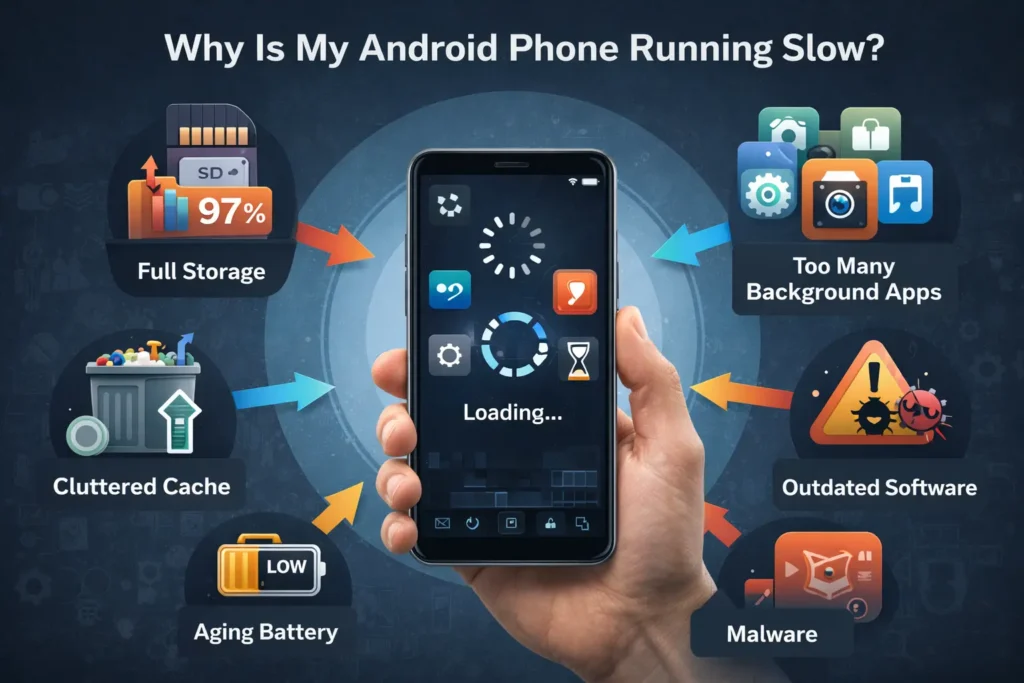
Before we dive into the fixes, it helps to understand what is actually slowing your Android phone down. Your device is not just randomly deciding to be difficult — there are usually a handful of very specific culprits causing the lag.
Here are the most common reasons your Android phone might be running slower than it should:
- Too many apps are running in the background at once
- A nearly full internal storage that leaves no room to breathe
- A cache that has become cluttered and bloated over time
- Outdated software or apps that are no longer optimised
- Live wallpapers and heavy animations drain system resources
- Malware or unwanted apps are silently consuming your RAM and CPU
- An ageing battery that can no longer deliver peak performance
Now that you know what to look for, let’s get into the solutions.
Solution 1: Restart Your Android Phone
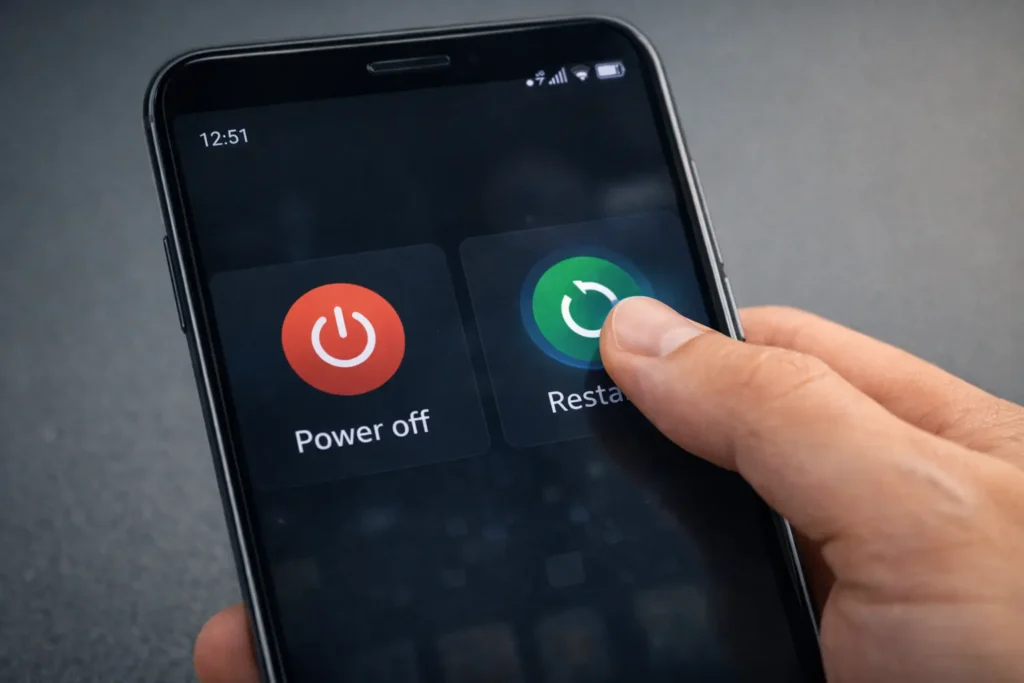
It might sound almost too obvious, but restarting your Android phone is one of the most underrated performance fixes out there. Many people leave their phones on for weeks without a full reboot, and over time, temporary files, stuck processes, and memory leaks pile up and drag everything down.
A simple restart clears your RAM, closes every background process, and gives your phone a fresh start. Think of it like clearing the clutter off your desk so you can actually work.
How to do it:
- Press and hold the power button on your Android phone.
- Tap Restart (or Power Off, then turn it back on).
- Wait for the device to fully boot up.
Make it a habit to restart your Android phone at least once a week. Your device will thank you for it.
Solution 2: Clear Cached Data on Your Android Phone
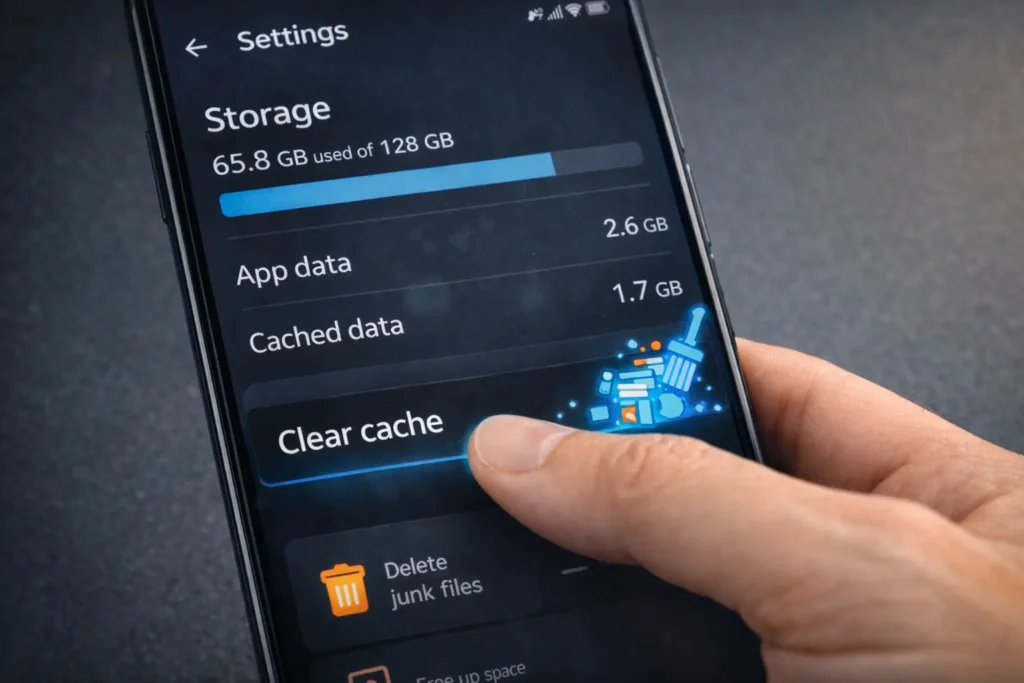
Every app on your Android phone stores temporary data called cache to help it load faster. The problem? Over weeks and months, this cache can grow enormous, take up precious storage space, and actually start slowing things down rather than speeding them up.
Clearing cached data is one of the quickest wins you can get when fixing a slow Android phone.
How to clear cache for individual apps:
- Open Settings on your Android phone.
- Go to Apps (or Application Manager).
- Select the app you want to clean up.
- Tap Storage, then tap Clear Cache.
How to clear all cached data at once:
- Go to Settings > Storage.
- Tap Cached Data.
- Confirm by tapping OK.
You will be amazed at how much space this frees up and how noticeably snappier your Android phone feels afterwards.
Solution 3: Uninstall Apps You No Longer Use
Take an honest look at your app drawer. How many apps do you have installed that you have not touched in the past month? Those dormant apps are not just sitting there quietly — many of them are running background services, checking for updates, and consuming RAM whether you use them or not.
Uninstalling unused apps from your Android phone is one of the most effective ways to free up both storage and processing power.
How to uninstall apps on Android:
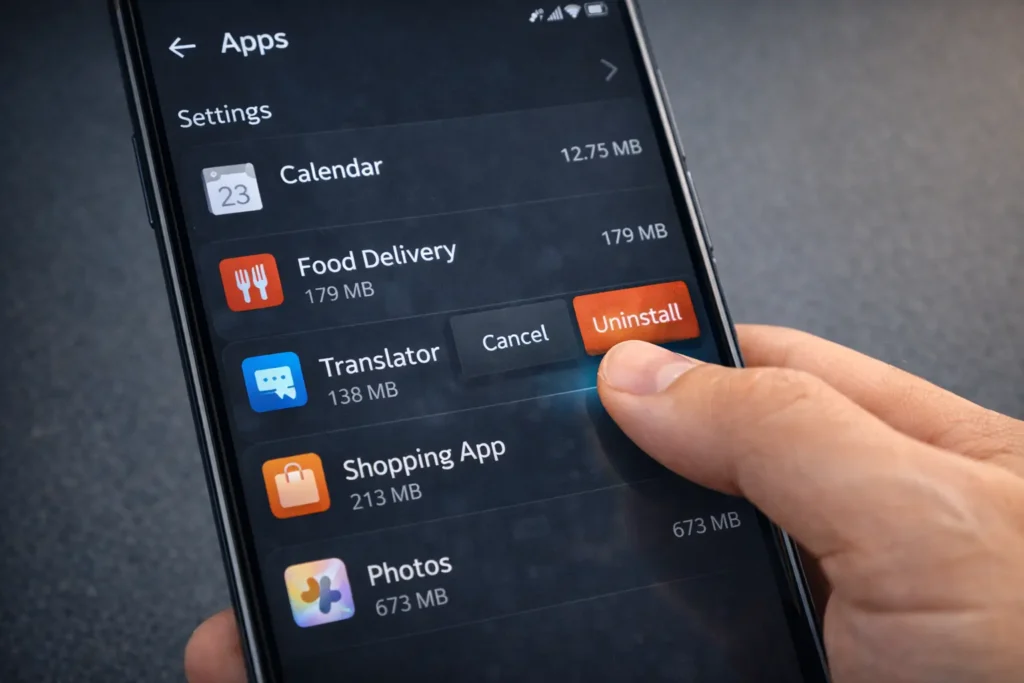
- Go to Settings > Apps.
- Browse through the list and tap on any app you no longer need.
- Tap Uninstall and confirm.
Alternatively, you can long-press any app icon on your home screen and drag it to the Uninstall option that appears. Either way, trimming the fat from your app collection can make a surprisingly big difference to how fast your Android phone runs.
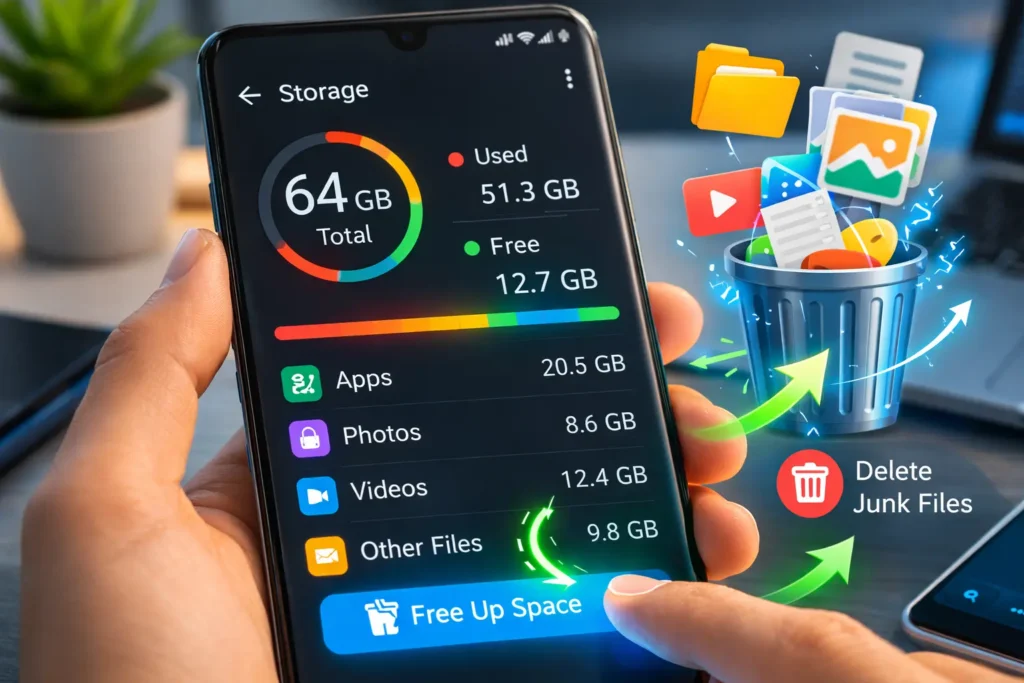
Solution 4: Free Up Internal Storage Space
Your Android phone needs breathing room. When your storage is more than 80 to 85 percent full, performance starts to suffer significantly. The operating system needs free space to write temporary files, swap data, and run processes smoothly. Without that space, everything slows to a crawl.
Here is what you can do to free up storage on your Android phone:
- Delete downloaded files, old documents, and APKs you no longer need.
- Go through your gallery and remove duplicate or blurry photos.
- Back up your photos to Google Photos or another cloud service, then delete the local copies.
- Move large files like videos and music to an SD card if your device supports one.
- Use the built-in Files app (or Google Files) to scan for and delete junk files.
Keeping at least 15 to 20 percent of your Android phone’s storage free at all times is a great rule of thumb for maintaining good performance.
Solution 5: Update Your Android OS and Apps
Running outdated software on your Android phone is like trying to drive with flat tyres. Updates are not just about new features — they contain important bug fixes, security patches, and performance improvements that can make a real difference to how fast and stable your device runs.
How to update your Android OS:
- Open Settings on your Android phone.
- Scroll down to System (or About Phone).
- Tap Software Update or System Update.
- If an update is available, tap Download and Install.
How to update your apps:
- Open the Google Play Store.
- Tap your profile icon in the top right corner.
- Select Manage apps and device.
- Tap Update All to install all available updates at once.
Make it a routine to check for updates at least once a month. Keeping your Android phone’s software current is one of the easiest preventative measures you can take.
Solution 6: Reduce or Disable Animations
Android phones use animations for nearly everything — opening apps, switching between screens, pulling down the notification shade. While these animations look polished and modern, they add a tiny delay to every single interaction. When your phone is already struggling, those delays add up quickly.
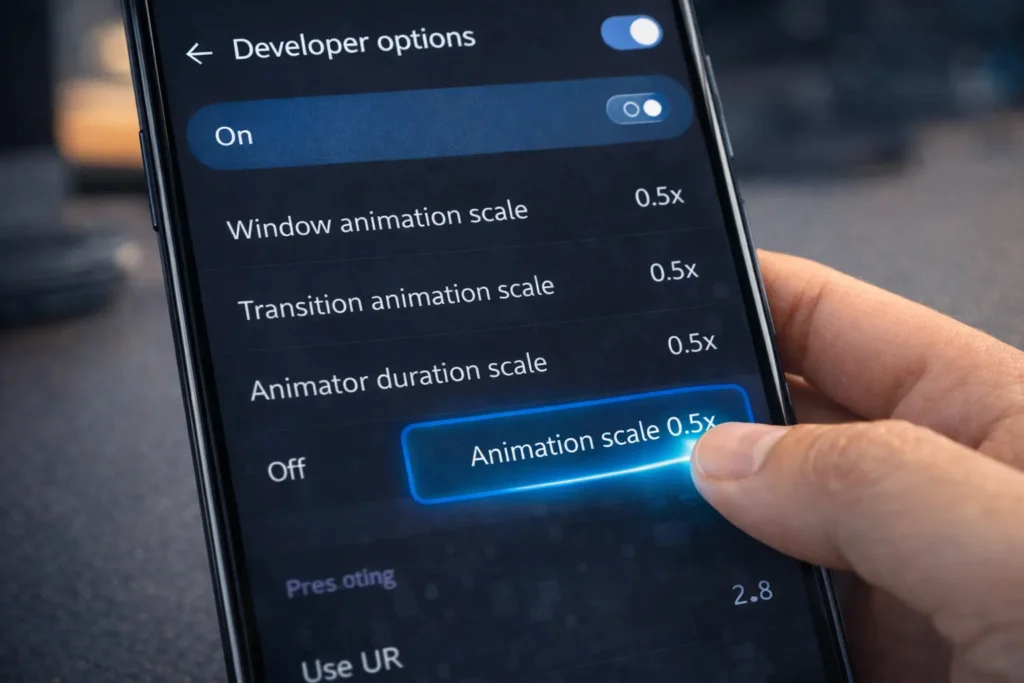
The good news is that you can reduce or even turn off these animations entirely using Developer Options, which makes your Android phone feel noticeably faster and more responsive.
How to access Developer Options and reduce animations:
- Go to Settings > About Phone.
- Find Build Number and tap it seven times in a row.
- You will see a message saying ‘You are now a developer!’
- Go back to Settings and open Developer Options.
- Find Window Animation Scale, Transition Animation Scale, and Animator Duration Scale.
- Set each one to 0.5x or Off.
The change is immediate. Your Android phone will feel snappier and more responsive the moment you exit the menu.
Solution 7: Switch to a Lighter Launcher or Wallpaper
Live wallpapers are beautiful — there is no denying that. But they are also constantly running on your device, consuming CPU cycles and draining RAM in the background. If your Android phone is already running slow, a live wallpaper is like pouring fuel on a fire.
Similarly, feature-heavy launchers with lots of widgets, animations, and visual effects can place a significant load on your phone’s resources.
Quick fixes:
- Switch from a live wallpaper to a static one in Settings > Wallpaper.
- Remove heavy widgets from your home screen, especially weather, news, or clock widgets that constantly refresh.
- Consider a lightweight launcher like Nova Launcher (set to performance mode) or Microsoft Launcher.
These small changes reduce the constant background load on your Android phone and can make everyday use feel a lot smoother.
Solution 8: Disable or Limit Background App Activity
Many apps on your Android phone are constantly running in the background even when you are not using them. They check for notifications, sync data, refresh content, and perform updates — all of which quietly chips away at your device’s performance.
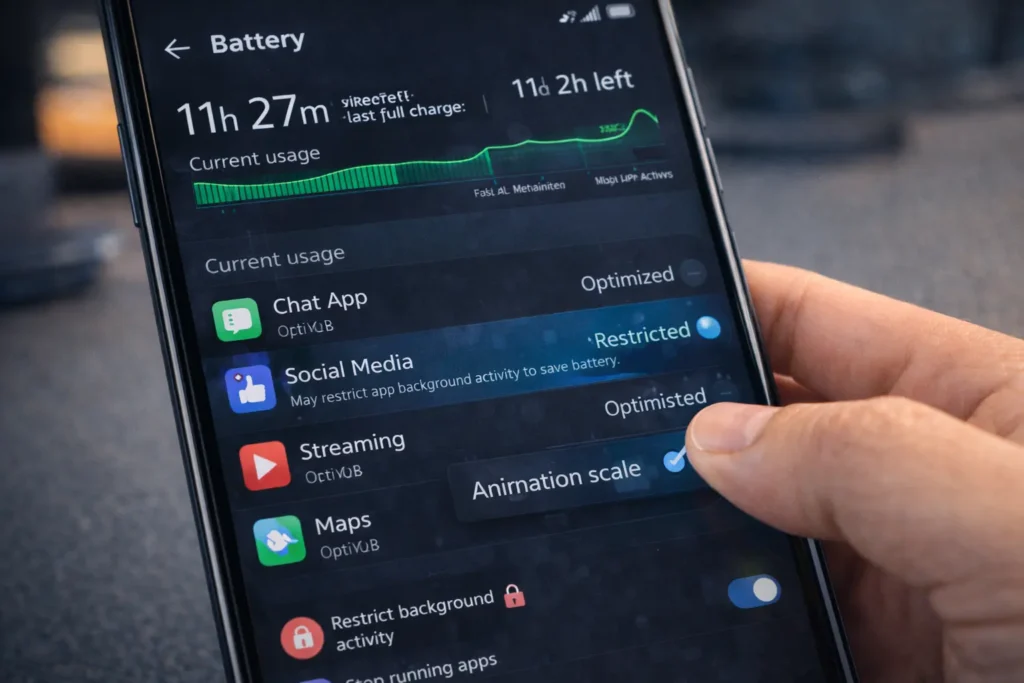
How to restrict background app activity:
- Go to Settings > Battery.
- Tap Battery Optimisation (or Background Activity on some devices).
- Select the apps you want to restrict and set them to Restricted or Optimised.
You can also go to Settings > Apps, tap on a specific app, go to Battery, and toggle off Allow Background Activity for apps that do not need to run in the background.
Be selective — apps like your email client or messaging app need some background access to deliver notifications. But social media apps, shopping apps, and games rarely need to be running when you are not using them.
Solution 9: Check for Malware and Unwanted Apps
If your Android phone suddenly started running slow out of nowhere, malware or adware could be the culprit. Malicious apps disguise themselves as legitimate tools and run silently in the background, consuming your phone’s resources and even sending your data elsewhere.
How to check for malware on your Android phone:
- Go to Google Play Store > Play Protect (under your profile icon).
- Tap Scan to check all installed apps for harmful software.
- Remove any flagged apps immediately.
Also look out for apps you do not remember installing. If you see anything suspicious in your app list, uninstall it straight away. You can also use a trusted, lightweight security app like Malwarebytes for Android to run a deeper scan.
Avoid downloading APK files from outside the Play Store unless you are absolutely certain of the source — that is one of the most common ways Android phones get infected with performance-draining malware.

Solution 10: Factory Reset Your Android Phone (Last Resort)
If you have tried everything else and your Android phone is still running slow, a factory reset might be the nuclear option you need. This wipes your phone back to its original out-of-the-box state, removing every app, setting, file, and piece of accumulated digital clutter.
It sounds drastic, but a factory reset can genuinely transform an old, slow Android phone into something that feels almost brand new.
IMPORTANT: Back up everything first!
- Back up your photos to Google Photos or a computer.
- Sync your contacts with your Google account.
- Note down any app login credentials and important data.
- Use Google’s built-in backup in Settings > Google > Backup.
How to factory reset your Android phone:
- Go to Settings > General Management (or System).
- Tap Reset > Factory Data Reset.
- Review the information on screen and tap Reset.
- Enter your PIN or password to confirm.
- Tap Delete All and wait for the process to complete.
Once your Android phone restarts, take the opportunity to reinstall only the apps you truly need. Think of it as a fresh start for both your phone and your digital habits.
Bonus Tips: Keep Your Android Phone Running Fast Long-Term
Fixing a slow Android phone is only half the battle. The other half is making sure it stays fast. Here are a few habits that will keep your device performing at its best:
- Restart your phone at least once a week to clear accumulated RAM and background processes.
- Keep your storage at least 15 percent free at all times.
- Regularly review and uninstall apps you no longer use.
- Keep your Android OS and all apps updated.
- Avoid charging your phone overnight every night — battery degradation can affect performance over time.
- Use lite versions of apps (Facebook Lite, Twitter Lite) when available.
- Do not use RAM boosters or task killer apps — they often do more harm than good on modern Android.

Quick Reference: 10 Solutions at a Glance
| # | Solution | What It Does |
| 1 | Restart Your Phone | Clears RAM and stops stuck background processes |
| 2 | Clear Cached Data | Frees up storage and removes outdated temporary files |
| 3 | Uninstall Unused Apps | Reduces background activity and frees storage |
| 4 | Free Up Storage Space | Gives the OS room to operate efficiently |
| 5 | Update OS and Apps | Applies performance fixes and bug patches |
| 6 | Reduce Animations | Removes visual delays for a snappier feel |
| 7 | Change Wallpaper/Launcher | Reduces constant background GPU/CPU usage |
| 8 | Limit Background Apps | Stops unnecessary apps draining RAM |
| 9 | Scan for Malware | Removes hidden apps stealing resources |
| 10 | Factory Reset | Full clean slate — last resort but highly effective |
Frequently Asked Questions (FAQs)
Q1: Why is my Android phone running slow all of a sudden?
A sudden slowdown on an Android phone is usually caused by a recent app update that has a bug, a storage drive that just hit full capacity, or malware that was recently installed. Start by checking your available storage and running a Play Protect scan. If neither of those is the issue, try clearing your cache and restarting the phone.
Q2: Does clearing cache make an Android phone faster?
Yes, clearing cache can make a noticeable difference, especially if it has not been done in a while. Over time, apps accumulate large amounts of stale cached data that takes up storage and can cause apps to run slowly or crash. Clearing the cache forces apps to rebuild fresh data, which often results in snappier performance.
Q3: How do I speed up my Android phone without deleting anything?
If you would rather not delete anything, try these steps: restart your phone, reduce animations via Developer Options, disable background activity for resource-heavy apps, switch from a live wallpaper to a static one, and make sure your OS and apps are fully up to date. These changes alone can make a significant difference.
Q4: Can too many apps slow down an Android phone?
Absolutely. Even apps you are not actively using can run background services that consume RAM and CPU power. The more apps you have installed, the more background processes your phone has to manage. Uninstalling or disabling apps you do not regularly use is one of the best ways to speed up an Android phone.
Q5: Is it safe to factory reset my Android phone?
Yes, a factory reset is completely safe. It simply restores your Android phone to its original software state. The key is to back up all your important data beforehand — photos, contacts, documents, and app data — so nothing is lost. After the reset, you can restore your backed-up data and reinstall only the apps you actually need.
Q6: How much free storage should I keep on my Android phone?
As a general guideline, try to keep at least 10 to 15 percent of your total internal storage free. On a 64GB phone, that means keeping at least 6 to 10GB available at all times. When storage fills up beyond 85 percent capacity, Android’s performance can degrade noticeably as the system struggles to find space for temporary files and processes.
Q7: Will a RAM booster app speed up my Android phone?
In most cases, no. Modern versions of Android (Android 8 and above) are designed to manage RAM intelligently on their own. RAM booster apps often force-close apps that Android would have kept in memory for fast access, which can actually make your phone feel slower because those apps have to fully reload next time you open them. Skip the RAM boosters and use the built-in battery and background app settings instead.
Q8: Why does my Android phone slow down as it gets older?
Several factors contribute to age-related slowdowns. The battery degrades over time and can no longer provide consistent power to the processor, which causes throttling. Software updates may be optimised for newer hardware. Storage fills up gradually. And years of app installations and data accumulation take their toll. Regular maintenance — clearing cache, uninstalling apps, freeing storage — can help significantly slow down this process.
Final Thoughts
Dealing with an Android phone that is running slowly is frustrating, but it is almost always fixable. Before you give up and buy a new device, work through the 10 solutions in this guide. Start with the quick wins — restarting your phone, clearing the cache, and freeing up storage — and then work your way down the list if needed.
In the majority of cases, you will find your Android phone feeling significantly faster long before you reach the factory reset option. And once you have got it running smoothly again, the maintenance habits in our bonus tips section will help keep it that way.
Your Android phone is a powerful device. With a little care and the right know-how, it can keep running fast and reliably for years to come.