
Laptop Running Slow: Is your Windows 11 laptop feeling sluggish and unresponsive? You’re not alone. Many users experience frustrating performance issues that make even simple tasks feel like a chore. The good news is that most slow laptop problems can be fixed without spending money on new hardware. This comprehensive guide will walk you through proven solutions to speed up your Windows 11 laptop and restore its performance.
Why Is My Laptop Running Slow on Windows 11?
Before diving into solutions, it’s important to understand the root causes of performance issues. Windows 11 can become slow due to various factors, including accumulated junk files, unnecessary background processes, outdated drivers, power settings, and even hardware limitations. Microsoft has made improvements with Windows 11, but like previous versions, it’s not immune to sluggishness or slowdowns.
Sometimes the issue is as simple as having too many programs running at once. At other times, it might be due to more complex factors, such as an outdated BIOS or an incompatible power supply. Let’s explore the most effective solutions step by step.
Essential Fixes for Slow Windows 11 Performance
1. Restart Your Laptop
The simplest fix is often the most effective. When your system becomes sluggish or hangs, try rebooting your PC or laptop. This will help terminate background programs that may be slowing your Windows 11. Many users report that a simple restart can resolve temporary performance issues caused by memory leaks or hung processes.
2. Remove Junk Files and Temporary Data
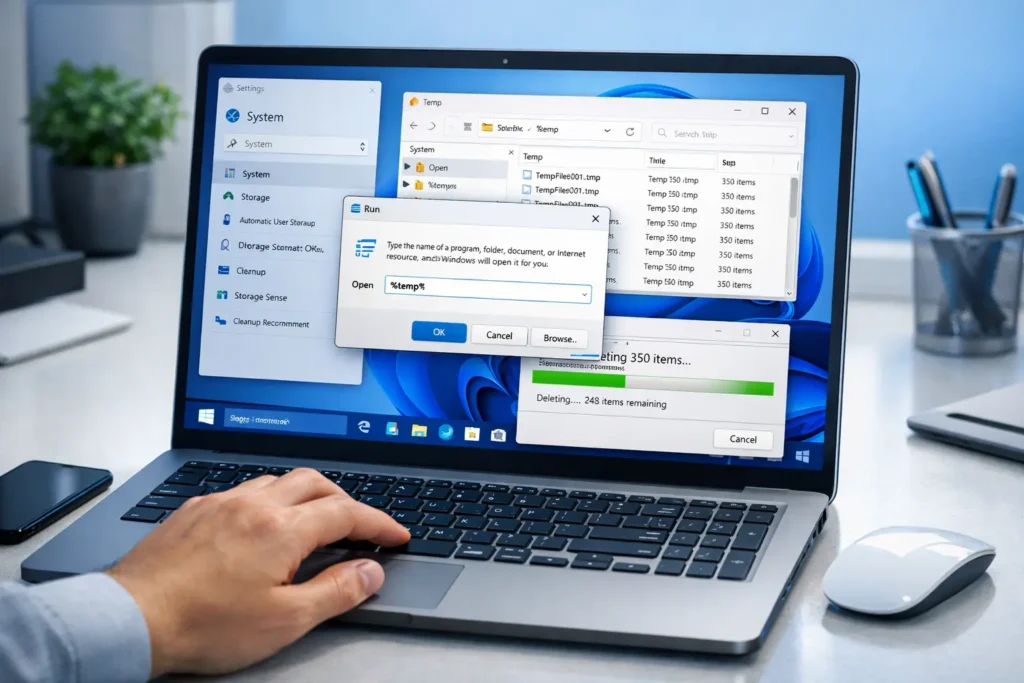
Corrupted or old temporary files can significantly impact Windows 11 performance. To clean them up:
- Press “Windows + R” keys together to open the “Run” dialog box
- Type “%temp%” and press Enter
- Select all files (Ctrl + A) and delete them
- Repeat with “temp” in the Run dialogue
- Use Storage Sense in Settings to automatically clean up files
After removing temporary files, restart your PC to check if the Windows 11 slow performance issue is resolved.

3. Disable Startup Programs
Many applications are configured to launch automatically at startup, consuming valuable resources and slowing boot time. To manage startup programs:
- Open Task Manager (Ctrl + Shift + Esc)
- Go to the “Startup” tab
- Right-click unnecessary programs and select “Disable”
- Focus on programs you don’t need immediately after starting Windows
Several unnecessary programs can reduce the load time in your Windows PC while booting it up.
4. Optimise Power Settings
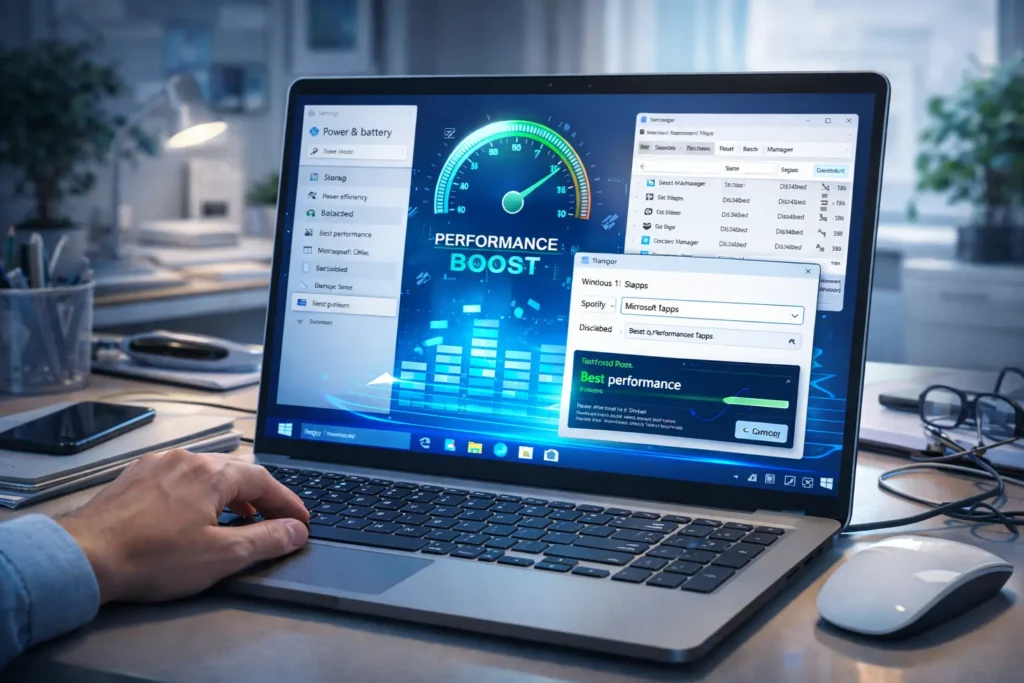
Windows 11 includes power management features that can throttle performance to save energy. To ensure maximum performance:
- Go to Settings > System > Power & battery
- Select “Best performance” from the power mode dropdown
- For laptops, ensure you’re connected to the power supply for optimal performance
- Check if your power adapter is providing adequate power – insufficient power supplies can cause significant slowdowns
5. Update Windows and Drivers
Keeping your system updated is crucial for performance:
- Go to Settings > Windows Update
- Click “Check for updates” and install all available updates
- Update device drivers through Device Manager or your manufacturer’s website
- Check for BIOS updates specifically, as an outdated BIOS can create compatibility issues impacting performance
6. Adjust Visual Effects
Windows 11’s visual effects can consume significant resources on older hardware:
- Press Windows + R, type “sysdm.cpl” and press Enter
- Go to the Advanced tab > Performance Settings
- Select “Adjust for best performance” or manually disable specific effects
- This can significantly improve responsiveness on laptops with limited resources
7. Disable Unnecessary Windows Features
Some Windows features run in the background and can slow down your system:
- Delivery Optimisation: This feature uses your internet connection to upload updates to other computers
- Search Indexing: Can be disabled on very old or slow systems
- Hypervisor and Virtualisation: If you don’t use virtual machines, disabling these can improve performance
To disable Delivery Optimisation:
- Go to Settings > Windows Update > Advanced options
- Click “Delivery Optimisation”
- Turn off “Allow downloads from other PCs”
8. Scan for Malware
Free software, which can sometimes be bundled with malware, can cause the system to slow down. Removing such software helps your device return to normal performance levels.
- Run Windows Security (built-in antivirus)
- Perform a full system scan
- Consider using Malwarebytes for additional protection
- Remove any detected threats immediately
9. Optimise Storage
Low disk space can severely impact performance:
- Go to Settings > System > Storage
- Enable Storage Sense for automatic cleanup
- Run “Storage cleanup” manually to remove unnecessary files
- Consider moving large files to external storage or the cloud
Junk files are easy to overlook, but can collectively take up so much storage that your hard drive runs too low on free space, causing slowdowns.6
10. Check Hardware Issues
Sometimes performance problems are hardware-related:
- Power Supply: Ensure you’re using the correct power adapter for your laptop. Using an underpowered adapter can cause significant performance issues4
- Overheating: Clean dust from vents and ensure proper airflow
- Hardware Failure: Run hardware diagnostics to check for failing components
Advanced Solutions for Persistent Issues
Reset or Reinstall Windows 11
If you’ve tried everything else and your laptop is still slow, consider resetting Windows:
- Go to Settings > System > Recovery
- Choose “Reset this PC”
- Select “Keep my files” to preserve personal data
- Follow the on-screen instructions
This can resolve issues caused by corrupted system files or accumulated software conflicts.
Upgrade Hardware
For older laptops, hardware upgrades might be necessary:
- SSD Upgrade: Replacing an HDD with an SSD provides the most significant performance boost
- RAM Upgrade: More memory helps when running multiple applications
- **Check if your device hardware specifications, such as CPU frequency, insufficient memory, or using HDD instead of an SSD, may be causing the slowdown
Preventive Measures to Maintain Performance
To keep your Windows 11 laptop running smoothly:
- Regularly clean up temporary files and junk data
- Keep your system and drivers updated
- Avoid installing unnecessary software
- Use reputable antivirus software
- Monitor system resources with Task Manager
- Create system restore points before major changes
Windows 11 can actually be pretty fast when it’s not trying to do everything at once. You just gotta take back control of what’s running on your computer instead of letting Microsoft decide for you.
Best AI Writing Tools for Bloggers (Free & Paid) — The Complete 2026 Guide
What Is Artificial Intelligence? A Beginner’s Guide (2026)
Frequently Asked Questions
Q: Why did my Windows 11 laptop suddenly become slow?
A: Sudden slowdowns can be caused by various factors, including recent updates, newly installed software, malware infections, driver issues, or hardware problems. Start by checking what changed recently – did you install new software or updates? Try restarting your laptop first, then proceed with the troubleshooting steps outlined above.
Q: Will disabling visual effects make a big difference?
A: Yes, adjusting visual effects can significantly improve performance on laptops with limited resources. Disabling animations, transparency, and other visual effects reduces the load on your GPU and CPU, making the system feel more responsive, especially on older hardware.
Q: How often should I clean up temporary files?
A: It’s good practice to clean temporary files at least once a month. However, if you use your laptop heavily or install/uninstall programs frequently, weekly cleanup might be better. Enabling Storage Sense in Windows 11 can automate this process for you.
Q: Is Windows 11 slower than Windows 10?
A: Windows 11 has similar performance to Windows 10 on compatible hardware. However, Windows 11 does have higher system requirements. If your laptop meets the requirements and is properly optimised, it should run just as well as Windows 10. Some users even report better performance after optimisation.
Q: Can an outdated power adapter really slow down my laptop?
A: Yes, absolutely. Many users have discovered that performance issues were caused by a power supply that wasn’t strong enough. The laptop might indicate slow charging, but many don’t realise it can also affect overall system performance. Always use the original or recommended power adapter for your laptop model.
Q: Should I use third-party optimisation software?
A: While some third-party optimisation tools can help, many are unnecessary or even harmful. Windows 11 includes built-in tools such as Storage Sense and PC Manager that handle most optimisation tasks safely. If you do use third-party software, choose reputable options and avoid aggressive registry cleaners.
Q: How do I know if my laptop’s hardware is too old for Windows 11?
A: If your laptop meets Windows 11’s minimum requirements but still runs slowly after all optimisations, the hardware might be struggling. Signs include constant high CPU/RAM usage, overheating, and slow response times, even with minimal applications running. In such cases, hardware upgrades or considering a newer laptop might be necessary.5
Q: Can malware cause my laptop to run slowly?
A: Absolutely. Malware can significantly impact system performance by consuming resources in the background. Always run regular security scans and avoid downloading software from untrusted sources. Free software bundled with malware is a common cause of system slowdowns.
Q: Will resetting Windows 11 delete my files?
A: When you reset Windows 11