

Hey there! If your iPhone is dying by midday even with light use, you’re not alone. In 2026, many iPhone users on iOS 26 report the same frustration — battery life that used to last all day now drops quicker than expected. Whether it’s after a recent update or due to everyday habits, the good news is you can fix iPhone battery drain with some straightforward tweaks.
I’ve been testing these fixes on my own iPhone, and they’ve made a real difference. No fancy tools or expensive replacements needed — just smart settings changes. Let’s dive in and get your phone lasting longer.
Why Is Your iPhone Battery Draining So Fast?
Before jumping into solutions, it’s helpful to understand the culprits. Modern iPhones pack powerful features like always-on displays, Apple Intelligence, and smooth 120Hz refresh rates. But these can eat power if not managed well.
Common reasons include:
- Background activity: Apps refreshing data, fetching mail, or using location services behind the scenes.
- Recent iOS updates: After installing iOS 26 or point releases like 26.4, your phone spends time indexing files, updating apps, and optimising in the background. Apple confirms this temporary drain usually settles in 24-48 hours.
- High screen brightness and features: Always On Display, ProMotion, or vibrant wallpapers push the battery harder.
- Weak signals and connectivity: Poor cellular coverage makes your phone work overtime searching for signals.
- Ageing battery health: If your maximum capacity is below 80-85%, it won’t hold a charge as well.
- App-specific issues: Rogue apps (especially social media or games) or outdated ones can cause unexpected drain.
The best part? Most issues are fixable with built-in iOS tools. Here’s how to fix an iPhone battery step by step.
1. Restart Your iPhone (Quick First Fix)
A simple restart clears temporary glitches and stops runaway background processes.
How to do it:
- For iPhone with Face ID: Quickly press and release Volume Up, then Volume Down, then hold the Side button until the Apple logo appears.
- For older models with the Home button: Hold the Side (or Top) button and the Home button together.
Do this once a week or right after an update. Many users see immediate improvement.
Pro Tip: After a major iOS update, charge overnight and restart in the morning. This gives the system time to finish indexing without draining your daily battery.
2. Enable Adaptive Power and Low Power Mode
iOS 26 introduced Adaptive Power, a smart feature that automatically adjusts settings based on your habits to save juice.
Go to Settings > Battery > Power Mode and turn on Adaptive Power. It can dim the screen slightly, slow background tasks, and even activate Low Power Mode when needed.
For instant relief, toggle on Low Power Mode (the battery icon turns yellow). It reduces mail fetch, Siri, background refresh, and visual effects.
Troubleshooting Tip: Don’t keep Low Power Mode on all the time — use it when you’re below 30% or on long days out.
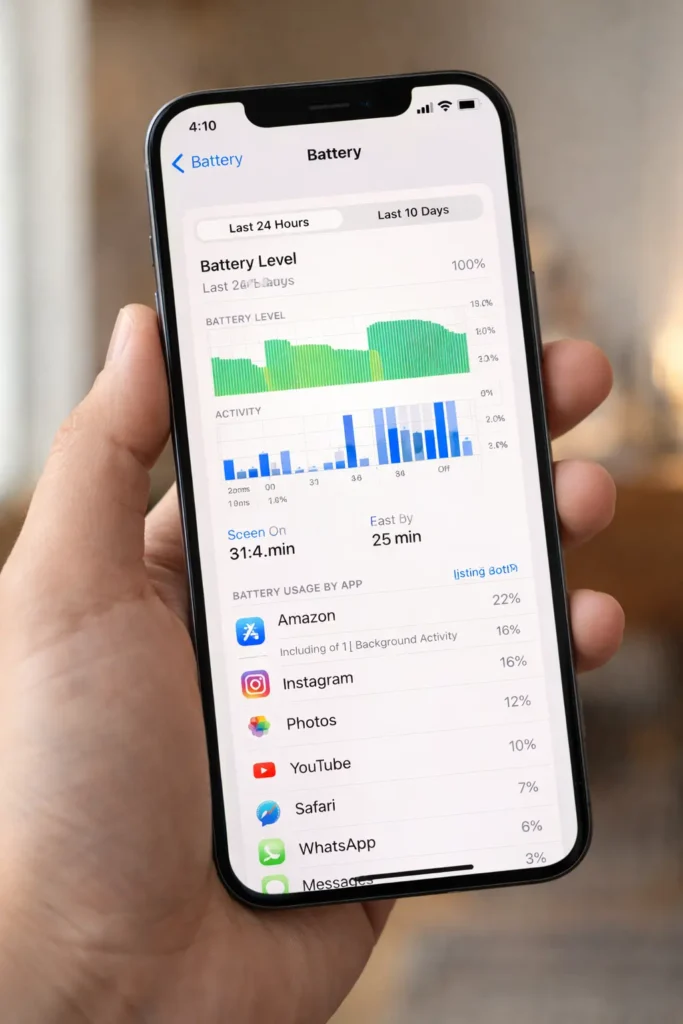
3. Check Battery Usage and Kill Battery Hogs
This is one of the most effective ways to fix iPhone battery drain.
Head to Settings > Battery. You’ll see a breakdown for the last 24 hours or 10 days, showing which apps use the most power.
Look for:
- Apps with heavy Background Activity
- System services are spiking unexpectedly
What to do:
- Force-close problematic apps only if they’re frozen (swipe up from the bottom and swipe away).
- Uninstall or offload rarely used apps.
- Update all apps via the App Store — outdated versions are common culprits after iOS updates.
Pro Tip: If “System” or “Photos” shows high usage, wait 48 hours post-update or restart to let indexing finish.
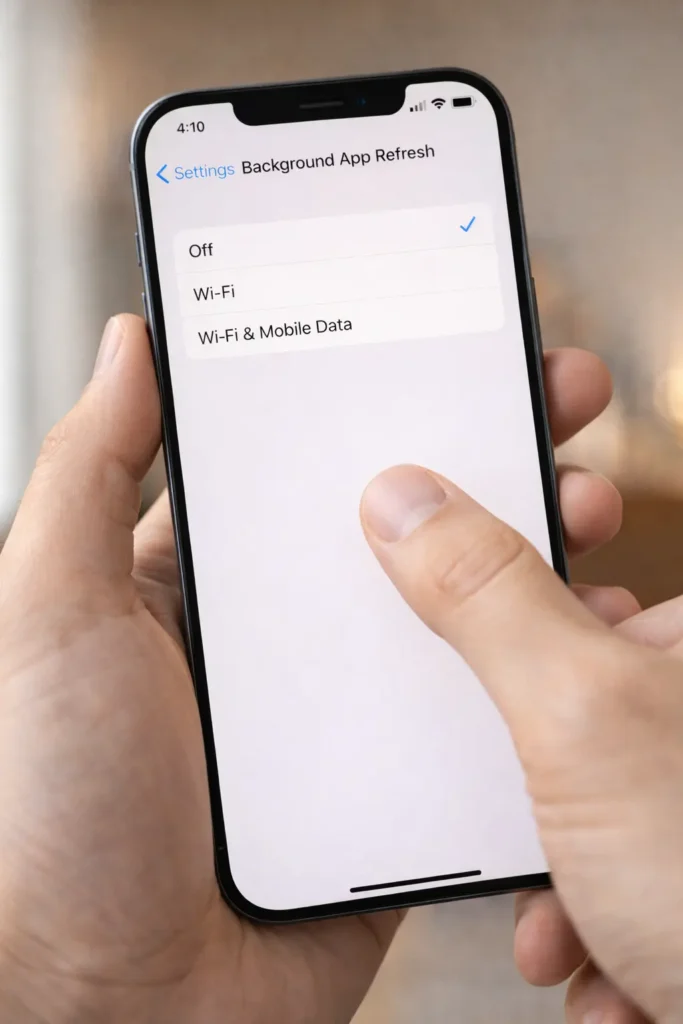
4. Turn Off Background App Refresh
Many apps refresh content even when you’re not using them. This silently drains power.
Go to Settings > General > Background App Refresh and set it to Off or Wi-Fi.
For individual control: In the same menu or per-app, disable for non-essential apps like social media or shopping apps.
This single change often adds hours to battery life.
5. Optimise Location Services and Privacy Settings
Location tracking is a hidden battery killer.
Steps:
- Go to Settings > Privacy & Security > Location Services.
- Set apps to “While Using” instead of “Always” where possible.
- Scroll to System Services and turn off unnecessary ones like “Find My iPhone” (if not critical), “Compass Calibration,” or “Motion Calibration & Distance.”
Pro Tip: For navigation apps, keep “Always” only if you rely on them for background tracking.
6. Manage Screen and Display Settings
Your screen is the biggest power consumer.
- Auto-Brightness: Settings > Accessibility > Display & Text Size — turn it on.
- Auto-Lock: Set to 30 seconds or 1 minute (Settings > Display & Brightness > Auto-Lock).
- Reduce Motion: Settings > Accessibility > Motion — enable Reduce Motion and Prefer Cross-Fade Transitions. This cuts animations and can help on iOS 26.
- Dark Mode: Especially useful on OLED iPhones (iPhone 12 and newer) — it saves power on dark pixels.
- Always On Display (Pro models): Settings > Display & Brightness — turn it off or customise to show less info.
- Lower refresh rate to 60Hz if your model supports it (for non-Pro or in Low Power Mode).
7. Update iOS and Apps Regularly (But Smartly)
Running the latest iOS 26 version often includes battery optimisations and bug fixes.
Go to Settings > General > Software Update.
After updating:
- Update all apps immediately.
- Charge overnight.
- Avoid heavy use for the first day.
Apple notes that post-update drain is normal due to background processes.
8. Optimise Battery Charging and Health
Protect long-term health while fixing daily drain.
- Optimised Battery Charging: Settings > Battery > Battery Health & Charging — keep it on. It learns your routine and delays charging past 80% until you need it.
- Charge Limit: On newer models, set a cap at 80% or 90% to reduce wear.
- Check Maximum Capacity — if below 80%, consider a battery replacement at an Apple Store.
Pro Tip: Avoid extreme temperatures. Don’t charge in hot cars or use while gaming in direct sunlight.
9. Tweak Connectivity and Notifications
- Use Wi-Fi whenever possible — it uses less power than cellular.
- In low-signal areas, switch to Aeroplane Mode temporarily or enable Low Data Mode (Settings > Cellular > Cellular Data Options).
- Reduce notifications: Settings > Notifications — turn off for non-critical apps to stop constant wake-ups.
- Disable Hey Siri if you don’t use it: Settings > Siri & Search.
- For 5G: Set to Auto or 4G in low-coverage spots.
One setting = hours of extra power.
10. Additional Quick Wins for Better Battery Life
- Widgets and Lock Screen: Remove live widgets and dynamic wallpapers.
- Dark Wallpapers: Use pure black ones on OLED screens.
- iCloud and Backups: Schedule backups for Wi-Fi only and disable unnecessary iCloud syncing on cellular.
- Reset All Settings (last resort): Settings > General > Transfer or Reset iPhone > Reset > Reset All Settings. This won’t delete data, but it clears custom configurations.
Troubleshooting Tip: If the drain continues, run a diagnostic at an Apple Store or use the built-in Battery Insights in Settings.
These 10 methods should cover most cases. Start with the first few — many people see big improvements within hours.
Read More Article
- Best Free VPN Software for Secure Browsing in 2026
- MacBook 2026 Full Review: Performance, Battery Life & Real Use Test
- New MacBook 2026 Launched: Features, Price, Release Date & Full Specs
- Apple’s official battery troubleshooting page: https://support.apple.com/en-us/120745
FAQs About Fixing iPhone Battery Drain
1. Why does my iPhone battery drain fast after the iOS 26 update? It’s usually temporary. The phone re-indexes data and updates apps in the background. Give it 24-48 hours, update all apps, and restart. Most users see normal battery life return soon.
2. Does Low Power Mode really help fix iPhone battery issues? Yes! It cuts power-hungry features and can add significant hours. Use it selectively or let Adaptive Power handle it automatically.
3. Should I force-close all apps to save battery? No. iOS manages apps efficiently in the background. Force-closing can actually use more power as apps reload.
4. When should I replace my iPhone battery? If the maximum capacity is under 80% and you notice poor performance even after optimisations, visit an Apple Store. They offer official replacements.
5. Can new features like Apple Intelligence cause battery drain? Some AI features do use extra power. Limit them in Settings > Apple Intelligence & Siri if needed, or turn off background suggestions.
6. Is it normal for the battery to drain overnight? A small amount is okay, but more than 10-15% suggests background activity. Check Battery settings and disable unnecessary refresh or location services.
Conclusion: Take Control of Your iPhone Battery Today
Fixing iPhone battery drain doesn’t have to be complicated. By applying these practical steps — especially Adaptive Power, background refresh tweaks, and smart display settings — you can enjoy longer screen time without constantly reaching for the charger.
Start small: Check your Battery usage today, enable Adaptive Power, and turn off Background App Refresh. You’ll likely notice a difference by tomorrow.
If these tips don’t fully resolve the issue, it might be worth checking your battery health or visiting an Apple Genius Bar.
Have you tried any of these fixes? Drop a comment below with your results or which tip worked best for you. And if this helped, share it with friends who are tired of mid-day charging!
Thanks for reading — here’s to fuller battery bars in 2026. 🔋